Your chart rank, on your own page.
A badge is a small image that shows where your app stands today: its best rank in its App Store category charts, or its rating and number of ratings. Put it in a README, a press kit or your site; it follows the nightly measurement.
Two badges, each read from the latest measurement
Both images are examples, drawn by the same code that serves your real badge.

Your best rank across the Top Free, Top Grossing and Top Paid charts of your app's own category in that storefront. The label names the chart it came from. Green inside the top 10, amber below it.

Your average rating in that storefront and how many ratings it rests on. Green from 4.0, amber from 3.0.
Light and dark, small and large



How do I put it on my page?
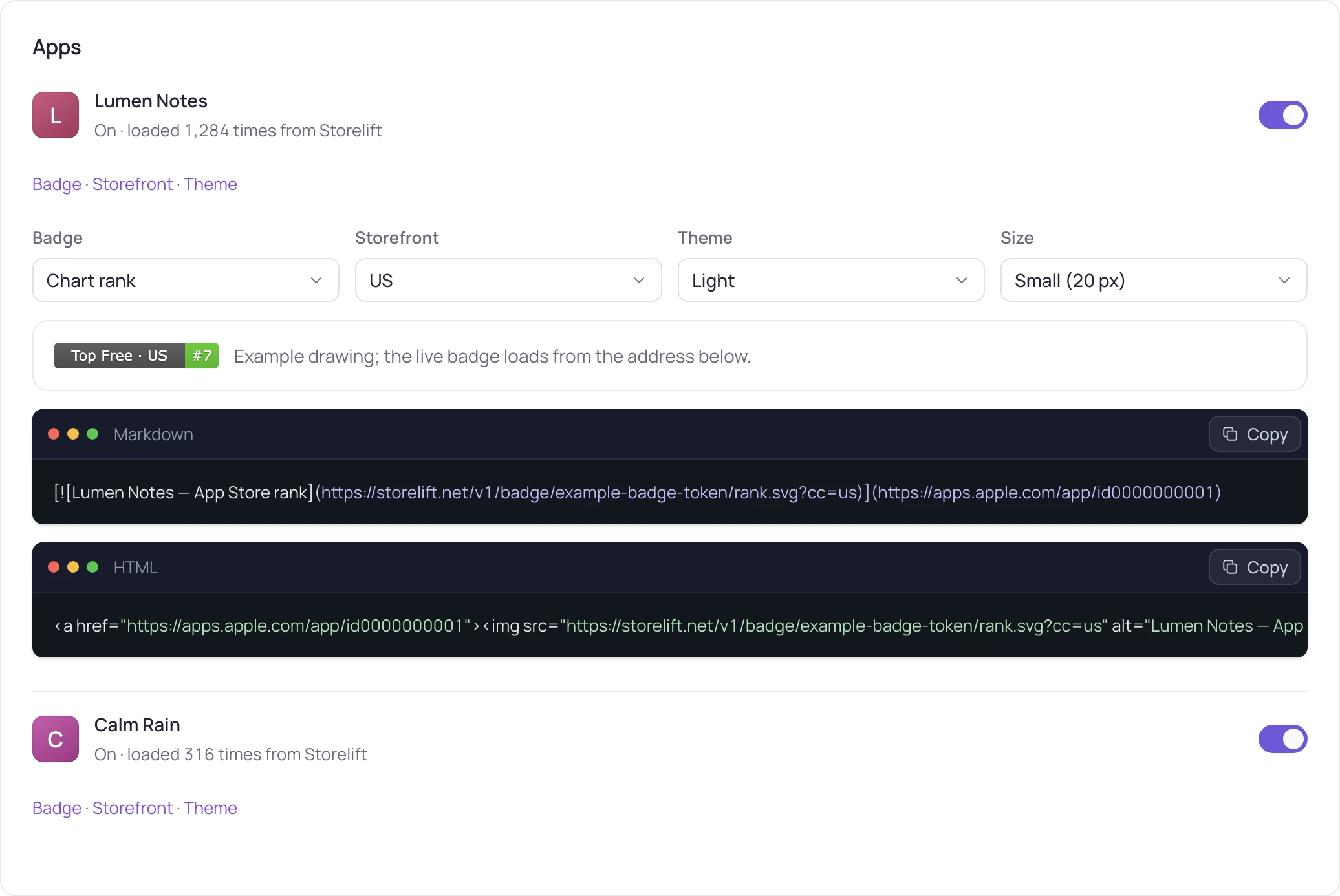
Turn a badge on in Settings › Badges. The card gives you the address and both snippets ready to copy, linked to your App Store page.
[](https://apps.apple.com/app/id<your-app-id>)<a href="https://apps.apple.com/app/id<your-app-id>"><img src="https://storelift.net/v1/badge/<token>/rank.svg" alt="App Store rank" height="20"></a>Parameters
- rank.svg / rating.svg
- Which badge. The same link works for both — only the file name changes.
- cc
- Two-letter storefront, e.g. cc=de. Default: the first storefront you track for the app.
- theme
- light (default) or dark.
- size
- sm (default, 20 px tall) or lg (28 px tall).
The badge says what the measurement says
Every figure on a badge comes from a measurement.
- Not in top 100
If the app is outside all three charts of its category in that storefront, the badge says so, in a neutral grey.
- Not measured
For a storefront that has not been measured yet, the badge says “not measured” until the first measurement lands.
- You switch it off, it stops
Turning a badge off ends its link at once. Turning it on again makes a new link, so every live link is one you turned on.
FAQ
Questions
Which chart is the rank from?
Your app's own category, in the storefront you pick. The badge shows your best position across the Top Free, Top Grossing and Top Paid lists; the label names which one.
How often does it change?
The badge reflects the available chart or rating record for the selected app and storefront. Check the corresponding dated observation in your dashboard before comparing it with another result.
Does it work for Google Play?
The badges read App Store charts and ratings. Play figures are on your dashboard and in the API.
Who can turn a badge on?
Members, admins and owners of the workspace, from Settings › Badges. Viewers see the badges that are on.
Can I see if anyone looks at it?
Yes. The card in Settings counts how many times the image was loaded from Storelift.
Does it cost anything?
No. Badges are on every plan, Free included, and loading them uses no API credits.
Put the number where people already look.
Add your app, let the first measurement land, and switch a badge on in Settings.